Point at anything. Ask out loud. Understand it instantly.
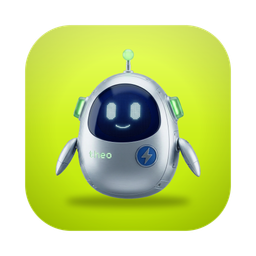
Sidekick is a tiny AI guide that lives next to your cursor. Ask about anything on your screen and it flies to the exact spot, frames it, and explains out loud. And when you ask, it clicks, types, and gets it done for you, in any app, without leaving what you are doing.
macOS 13+ · Apple silicon & Intel · Free with your OpenCharts account
Right here: that’s Save. Click it whenever you want to keep your changes, and I’ll stay out of your way.
Ask a question. Watch it point.
The same three things happen every time: flying to the answer, talking it through, and teaching it step by step.
It points to the exact control
No more “it’s in the menu somewhere.” Ask a question and Sidekick highlights the precise control and tells you, in plain words, exactly what it does.
Open Export, then pick a format. Sidekick walks you through it one step at a time.
You just talk to it
Hold the hotkey and ask out loud. Sidekick listens, looks at your screen, and answers back in a natural macOS voice. Say “stop” to cancel, or “repeat” to hear it again.
You said: “How do I export this?”
Open the File menu, then choose Export. I’ll point at it and wait while you click.
It teaches one step at a time
Ask how to do something and Sidekick turns it into a calm, guided lesson, one step at a time, on your own screen. Say “next” to move on, with no waiting between steps.
Export your design as a PNG
Open the File menu in the top bar
Two ways to find the exact spot
Sidekick reads the app first for instant, pixel-perfect pointing. When an app hides its controls, it looks at the screen instead, so it works everywhere, even canvas tools.
Accessibility layer
Sidekick matches the frontmost app’s real UI tree, so it knows exactly where every control is, with no screenshot required.
Vision grid
When an app hides its controls, Sidekick overlays a numbered grid and a vision model picks the right cell, so even canvas apps get pixel-accurate pointing.
Not just answers. It gets it done
Sidekick points, explains, remembers, and, when you ask, takes the action for you. The little things that make it feel like a patient expert sitting right next to you.
It can just do it
Ask Sidekick to open an app, click a control, type, hit a shortcut, or quit, and it runs the whole sequence for you. It asks for a “go ahead” before it acts, or you can switch on Autopilot.
It remembers you
Because you’re signed in, Sidekick carries what matters across every OpenCharts chat, and remembers what you tell it here too, so you never repeat yourself.
Reviews your code
Reads what’s on screen and gives a candid review.
A real conversation
A persistent thread, not one-shot answers.
Private by default
Skips sensitive windows; screenshots are never stored.
Works in any app
Native, web, or canvas. Sidekick adapts.
Answers faster
Starts speaking the moment the first words land.
Signed & notarized
A trusted, Apple-notarized build.
Updates itself
Always current, with nothing to manage.
Powered by Theo
The same AI behind OpenCharts.
Signed in, in sync, and it remembers
One sign-in, no keys
Click “Sign in with OpenCharts” and you’re connected. Sidekick runs on Theo, so there’s nothing else to set up.
It remembers each app
A separate memory per application, so you can switch tools all day and the context never crosses wires.
In sync with your account
Your access and usage stay in step with everything else you do in OpenCharts.
Three steps to your on-screen guide
Download and open
Grab the signed, notarized macOS app and drag it to Applications. One universal build runs on Apple silicon and Intel.
Sign in with OpenCharts
Click “Sign in with OpenCharts.” No API keys to paste, nothing to configure, so you’re connected in seconds.
Point, ask, and learn
Hold your hotkey anywhere, ask out loud, and Sidekick flies to the answer and explains it on your own screen.
Good to know
Is Sidekick free?
Yes. Sidekick is free with your OpenCharts account. AI usage draws from the same credits as the rest of OpenCharts.
Does it work in any app?
Yes. Sidekick reads the macOS accessibility layer for instant, exact pointing, and falls back to vision when an app does not expose its controls, so it works even in canvas tools.
Does it see everything on my screen?
Only when you ask. A screenshot is used for a single answer and is never stored. Sidekick also skips the screen entirely over password managers, banking, and login windows.
Do I need an API key?
No. Just sign in with OpenCharts and you're ready. Sidekick runs on Theo, drawing from the same credits as the rest of OpenCharts, with no bring-your-own-key setup and nothing to paste.
Which Macs are supported?
Any Mac on macOS 13 Ventura or newer. The download is a single universal build for both Apple silicon and Intel.
Can Sidekick do things for me?
Yes. Ask it to open an app, click a control, type, press a shortcut, or quit, and it runs the steps for you. By default it shows what it's about to do and waits for a “go ahead”; turn on Autopilot in Settings to let it act immediately. It needs Accessibility permission and never acts on sensitive windows.
Does it remember me?
Yes. Because you're signed in, Sidekick surfaces durable facts from your OpenCharts chats and remembers what you tell it here, so you don't repeat yourself. Memory can be turned off in Settings and is always skipped on sensitive windows.
Can it review my code?
Yes. In Claude Code, an editor, or a pull request, ask for a review and Sidekick reads what's on screen and gives a candid, prioritized rundown of bugs, security, performance, and readability, right in the chat thread.
How is this different from a chatbot?
A chatbot cannot see your screen, so you copy, paste, and translate its answer to where you are. Sidekick points at the exact spot in your own app, walks you through it, and can take the action for you.
Meet your Sidekick
Free with your OpenCharts account. About thirty seconds to set up, and it keeps itself up to date from then on.